Trop fort l'histoire de version dans Android fallait le savoir, sinon j'ai réglé sur 1080pPulsarone a écrit : 28 févr. 2021, 08:57Bonjour,
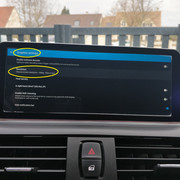
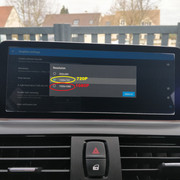
Sandrobisi : Menu d'usine / Choix affichage de la voiture / choisi "NBT XxXxXXX10.25" (je ne me rappel plus bien) pour que ton affichage sois complet
Puis dans Android Auto / Menu / Paramètres / Clic plusieurs fois sur "VERSION" cela va activer le mode "DEVELOPPEUR" / les trois petits points en haut à droite / paramètres pour développeur / là : tu règle ta résolution d'affichage (ne touches à rien d'autre)
Cédric11 : Il va te falloir découper ton TDB et installer une molette :
Bonne journée les gens,
NB : hier j'ai pris un an de plus![]()


En anglais, voilà à quoi ceci/cela correspond :Pulsarone a écrit : 09 févr. 2021, 10:54.../...
Et pour nos amis Fan de manuel : https://www.realmediashop.de/DOKU/10TAL ... OOK_EN.pdf
.../...
System
Mirror Reverse Camera
Disable Video In Motion
Parking Lines
Park Distance Control
Camera Selection
Aftermarket Camera
OEM Camera
360 Camera
Brightness
The overall display background lightning brightness can be defined.
AUX Position
This is only used for Mercedes Headunits, "Factory -> Vehicle -> AUX Switching mode" has to be set to "Other" for this to be enabled, a video can be found HERE.
As the AUX option position at Mercedes headunits does vary you need to count the horizontal and vertical lines of selecting AUX.
Aux Position 1 is horizontal , Aux Position 2 is the vertical ammount of lines to select AUX.
Aux Position 1
Aux Position 2
Mute while on reverse
Unit Of Temperatue
°C
°F
Navigation
If your desired navigation app is not listed then the appname has to be added at factory_config.xml -> <SupportNaviAppList>
Volume
Android Volume
Media
Call
OEM Volume
Call
Navi
Sound
Language
The listed languages are defined at factory_config.xml -> <SupportLanguageList>
Time
Time Synchronisation
Time System
Systeminfo
MCU Ver: 02352dGS-CIC-GTL-191127-B18 (example)
App Ver: Ksw-Q-Userdebug_OS_v2.0.0
System Ver: 10-8953EA
Storage: 21.53/32GB
RAM: 2GB
MCU Upgrade
System Recovery
Example how to read a MCU string:
Note: for Updating MCU files, any part of the string beside the Release date have to match !
MCU Ver: 02352dGS-CIC-GTL-DC-200805A
02352 - Hardware string
dGS - Vendor / Hardware manufacturer, in this case GS
CIC - Target CAN Bus System , in this case CIC (can be E or F series)
GTL - Target Can Bus Speed system GTL = 100 kbits -> CCC/ E series CIC and some F series CIC (not 100% confirmed) , GTH = 500kbits -> F series NBT, NBT EVO
DC - Optional String DC or DC1 , DC does define HD Display = 1920x720px
200805A - Release Date of String in YYMMDD format , 5th August 2020
The MCU Update Tool does check Vendor and Optional String, if this strings do match its possible to update the file.
It does NOT check CAN Bus System and Speed strings, don`t update to different Version unless you know what you do !
Android
This option does switch to Android settings.
Factory
To enter the Factory Settings you need to know the password,
The Factory Password is defined at factory_config.xml -> <password>1314</password>
Altough the file states that the password has to be 4-6 digits, also one digit does work.
It is not possible to disable the Password mask.
most common known passwords are:
1314 (most common / GS:Mekede, Navifly, Naviodm,... LZH: Andream)
070305 (ALS)
0 (full Factory file)
1316
2486
5678
1812
8888
111111
190627 (HIFIMAX)
Function
USB-Host
Enable USB-Ports, when disabled no thumbdrive ect. wil be recognized anymore.
ZLink
enabling Zlink does enable Wireless hotspot automatically on Headunit, as result of this normal Wlan is disabled as both features can not work the same time
Google Apps
This seems to have no function anymore
AUX
This does enable a App called "AUX" at Android apps menu, more information for function needed
DTV
This does enable a App called "DTV" at Android apps menu, more information for function needed
F_CAM
This does enable a App called "F_CAM" at Android apps menu, more information for function needed
Txzing Assistant
This does enable the chinese Infotainment support of txzing.com (Voice Recognition, Personal Assistant, Navigation, ect.)
BT
This does enable the Bluetooth Module of the headunit to use the build in Phone App or stream music from your mobile.
If you don`t use this features and expierence issuse with OEM Handsfree calling disable this to avoid interferences.
Touch data continuously sent
Function for Lexus OEM Touch Display.
Remember The last Mode
This does change the behavior wether the display should boot with OEM Screen or Android Screen enabled.
This function is not very stable and does not work always the way it is set.
Enable
To OEM System
To Android Homepage
DVR
More Information necessary.
Close
CVBS DVR
USB DVR
Bluetooth Selection
This change weither Android Bluetooth should be displayed or or OEM Bluetooth.
Please note depending on Car / configuration, this may not work with all Steeringwheel /Buttons.
OEM Bluetooth
Android Bluetooth
Amplifier Selection
More Information necessary.
OEM AMplifier
Aftermarket Amplifier
360 Camera
More Information necessary.
CVBS Camera
VGA Camera
Automatic Brightness
This does control wether the Android Headunits Backlight display brightness controll should be automatically dimmed when the cars light will be turned on.
With Lamp Control
Closed
Unit Selection
Selection of unit system
This does not work with all Dashboards.
Also if you have a small display and the right side small gap filler this does always show km/h / l as this is been displayed by the MCU not Android system.
Metric Unit
Imperial Unit
AHD Camera Selection
More Information necessary.
Not Supported
AHD- *Cameraresolution*- *FPS* for example:
AHD-1080P-30Hz
CVBS-NTSC
CVBS-PAL
Launchers Music App
This does enable you the option to change the default Music Player app.
Please not this function is not implemented at all GUIs, some are hard coded to the internal player.
Vehicle
Car Without OEM Monitor
When pressing the "CAR" Button then a Screen with a clock will be displayed instead of a OEM System.
Aux Switching Modes
Automatic
Manual
Aux auto switching
More information necessary
Alpine
Harman
Other (Has to be used with Mercedes Headunits, when Using AUX-Position1 /2, , a video can be found HERE.)
Knob Type
Selecting Controller Type, seems to be MCU related as it does only have an affect for some systems
Knob_A
Knob_B -> on some cars required to set for old style CCC 1-Button controller
Door Settings
Left driver`s seat
Right driver`s seat
Hide doors
Number of doors
4 doors
2 doors
Speedometer Selection
This does only apply to some Dashboards, SevenColor Dashboard is not affected by this.
260km/h
280km/h
Gear selection
This Option is related to PDC/ Reverse camera
When setting this option to "automatic", the Display does switch to the PDC/Camera system which your have defined at SYSTEM -> Camera Selection
Automatic
Manual
Map Key Selection
Defines which Navigation system should be started when pressing your car`s navigation hardware button.
Android Navi
Car Navi
Mode Key Selection
Enable
Disable
Voice Key Selection
not used
Short press does nothing, Long press opens NAVI
Short press opens Voice Command,Long press opens Navi
Short press opens Navi, Long press does nothing
Benz Control Panel
This setting is only visible when <car_manufacturer> is set to "2:Benz" at factory_config.xml
Close
NTG3.5
NTG3.0
Collect Can Bus Data
This is a Debug function, do not enable when really necessary !
When this is enabled, Idrive controller imputs will be delayed by serval seconds !
Benz Aux Activate
This setting is only visible when <car_manufacturer> is set to "2:Benz" at factory_config.xml
If your Mercedes has no AUX option by factory you have to enable this, , a video can be found HERE.
Air Conditioner
This setting is only visible when <car_manufacturer> is set to "2:Benz" at factory_config.xml
Car Display
This screen is for selecting your OEM Display type.
The main difference between different Models ist position correction of the Display itself, so if your OEM Screen is some pixels of you can also try a different car type display as long as Display aspect ratio do fit.
"Halfscreen" Selection -> the OEM Display will be showed with correct aspect-ratio and a filler image will be displayed on the side
"Fullscreen" Selection -> the OEM Display will streched to full screen
Can Protocol
Depending on your factory_config.xml you can select 3-4 options.
Select the one that fits your car most, there is no information of whats different between the settings
UI Configuration
Depending on your factory_config.xml file you can select between different GUI`s
If you want to have all GUI`s available best is to use the Full-Feature factory_config.xml file from 1st post.
Profile Import
The version string is defined at factory_config.xml file <ver>GS-BMW-20200618.en</ver>
Import Configuration
Restart
Boot Logo
More information necessary for import function.
Page 1
Page 2
Import


J'ai retrouvé ! donc tu as ça :Cédric11 a écrit : 27 févr. 2021, 14:23Bonjour,
Je suis nouveau sur forum et je réfléchis pour installer un écran Android.
Vhl : bmw 116i f20 2013
Le véhicule ne possède pas d'écran,un simple ordinateur de bord au niveau de la commande radio.
J'aimerais avoir des avis sur le type d'interface que je peux mettre et si possible s'ils ont l'affichage de la température moteurs , niveau huile ,tt les informations habituel.
MERCI


Il va te falloir la molette aussi nonCédric11 a écrit : 02 mars 2021, 15:30Merci pour toutes ces informations , j'ai trouvé celui-ci :https://www.ewaying.fr/collections/pour ... 20-f21-f22
![]()

Franchement tu assure, je te remercie beaucoup. J'essaye de suite en rentrantPulsarone a écrit : 05 mars 2021, 11:10"Easy Connect" est une application chinoise pour faire du mirroring (affiche ce que tu as sur l'écran de ton tel sur le HU BMW) c'est assez lent, tu as des retards d'affichage selon l'application et, tu n'aura pas le son de transmis...
Après tu peux la conserver ou la retirer comme tu le souhaites. Elle se retélécharge sur le play store si nécessaire : https://play.google.com/store/apps/deta ... .wws&hl=fr
Pour Speedplay, je ne connais pas cette application, je ne peux malheureusement pas t'aider.
Pour HU Reload Emulator :
Sur ton téléphone portable va dans Android Auto / Paramètres / les trois petits points en haut à droite / paramètres pour les développeurs :
Ajouter la projection sans fils... doit être coché
Forcer la consigne des données... doit être coché
Résolution vidéo** = clic = Autoriser jusqu'à 720P** (si mauvais affichage choisir 1080P**)
Source inconnues... doit être coché
TOUT LE RESTE... doit être décoché
NB : Dans les paramètres de ANDROID AUTO sur ton tél. "utiliser le bluetooth" doit être activé - "Météo" doit être activé - Tout le reste décoché
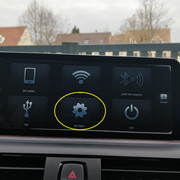
Sur le HU ANDROID va dans HUR Emulator puis SETTINGS puis GRAPHICS SETTINGS puis RESOLUTION et en fonction de ton affichage téléphone cité précédemment** tu choisis la résolution qui va bien (test en premier avec du 720P)
![]()
![]()
Après quoi tu ferme les 2 applications, et tu connectes ton téléphone avec l'usb sur ton HU Android, = Une petite fenêtre apparait tu choisis "HUR Emulator" et tu cliques sur toujours. Puis HUR Emulator se lance et tu vois si ta résolution est la bonne et quel te plait.
Après cette étape, il existe aussi un moyen de lancer tout ceci en "sans fils"![]()
![]()


Vous devez être membre pour pouvoir répondre
Vous n‘êtes pas membre ? Inscrivez-vous pour rejoindre notre communauté
Les membres peuvent créer leurs propres sujets et s‘abonner à des sujets
C‘est gratuit et cela ne prend qu‘une minute